


socialRadar guide
Last updated:
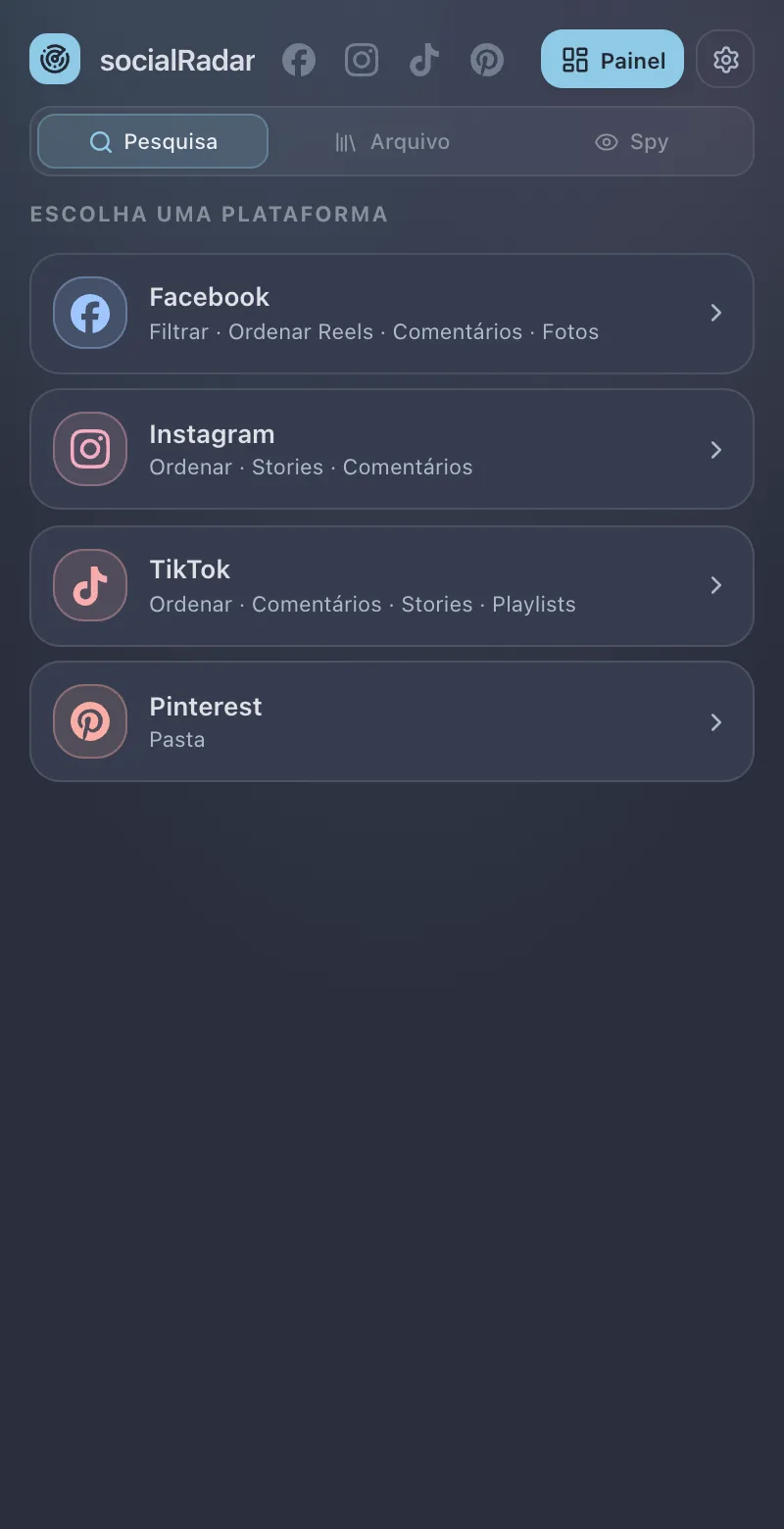
This guide walks through every part of the extension, in the order you will use it. The screenshots are of the extension itself, with fictional accounts (*.demo). The extension’s interface is in Portuguese, so the button names below are given in Portuguese with their meaning.
Getting started
Install
- Download the
.zipof the latest release and unzip it. - Open
chrome://extensionsand turn on Developer mode (top right). - Click Load unpacked and pick the unzipped folder.
- Pin the socialRadar icon to Chrome’s toolbar. Clicking it opens the side panel.
It works in Edge and Brave too, the same way (edge://extensions, brave://extensions).
The side panel
The header holds four things:
- Logo — back to the start of the Pesquisa tab.
- Network icons — show which network the panel is following, and let you switch by hand.
- Painel (Dashboard) — opens the Spy dashboard in a browser tab.
- Gear — opens Opções (Options).
Below it are the three tabs:
| Tab | What for |
|---|---|
| Pesquisa (Research) | The tools for the network that is open: sort, stories, comments, filter, photos, boards. |
| Arquivo (Archive) | Your Transcrições (transcripts) and Salvos (saved posts), from every network. |
| Spy | The profiles you track and the daily measurement. |
The panel follows your tab. Open Instagram and it shows the Instagram tools; switch to a TikTok tab and it switches too. Nothing to pick.
Sorting posts
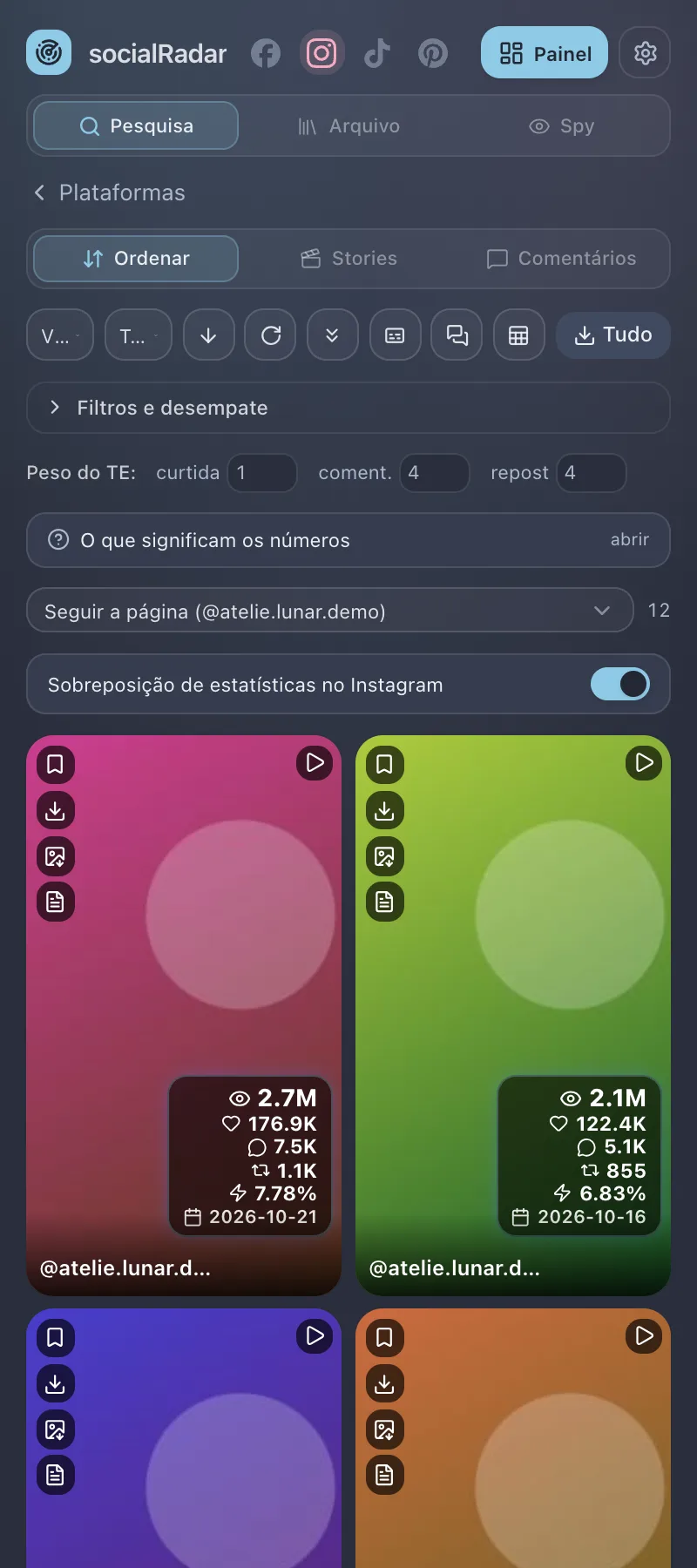
The most used tool. It puts a profile’s posts (or a hashtag’s, or a search’s) in the order you want: most viewed, most commented, best engagement rate.
How it works
- Open a profile, a hashtag, a search or Explore on Instagram.
- In the panel, go to Pesquisa › Instagram › Ordenar.
- Scroll the page. The extension reads the posts Instagram itself loads and builds the grid in the panel. To avoid scrolling by hand, use the Coletar (Collect) button (see below).
- Pick the order in Ordenar por (Sort by).
The order applies in both places: the panel’s grid and Instagram’s own grid are reordered together.
The toolbar
From left to right:
| Button | What it does |
|---|---|
| Ordenar por (Sort by) | Views, Velocity (views per day), Likes, Comments, Reposts, ER %, Reach (views ÷ followers), Likes / views %, Comments / views %, Reposts / views % or Date. Padrão (Default) keeps Instagram’s order. |
| Período (Period) | Only posts from the last 7, 14, 30, 90 or 180 days, the last year, the last 2 years, or all time. Useful on hashtags, which mix in old posts. |
| Arrow | Flips the order: high → low or low → high. |
| Atualizar (Refresh, circular arrow) | Clears everything collected on Instagram and collects the current page again. It asks for a second tap, because it erases the Sort and Stories capture. |
| Coletar (Collect, double arrow down) | Scrolls the page by itself, 10 times, at a human pace (3 s, then 6 s, then 10 s), so Instagram loads more posts. Tap again to stop. |
| Transcrever todos (Transcribe all) | Queues, one at a time, the listed videos that have no transcript yet. |
| Comentários de todos (Comments of all) | Opens, one at a time in a tab of its own, up to 15 listed posts and reads their comments and replies (20–40 s between posts). |
| Planilha (Spreadsheet) | Exports the listed posts to .xlsx, with followers, ER, views per follower and the audio used. |
| Tudo (All) | Downloads every listed post to your downloads folder. |
Hover any button to see its name.
Each card in the grid
- Left column: Save (goes to Arquivo › Salvos and turns yellow), Download the media, Download the thumbnail and Transcribe. The transcribe button spins while it works, turns green when done (one tap opens the text) and red if it failed.
- Top right corner: the post type — video, carousel or photo.
- The numbers: views, likes, comments, reposts, ER % and the date. The O que significam os números (What the numbers mean) box explains each icon.
- Click the picture to open the post on Instagram.
Filters and tie-breakers
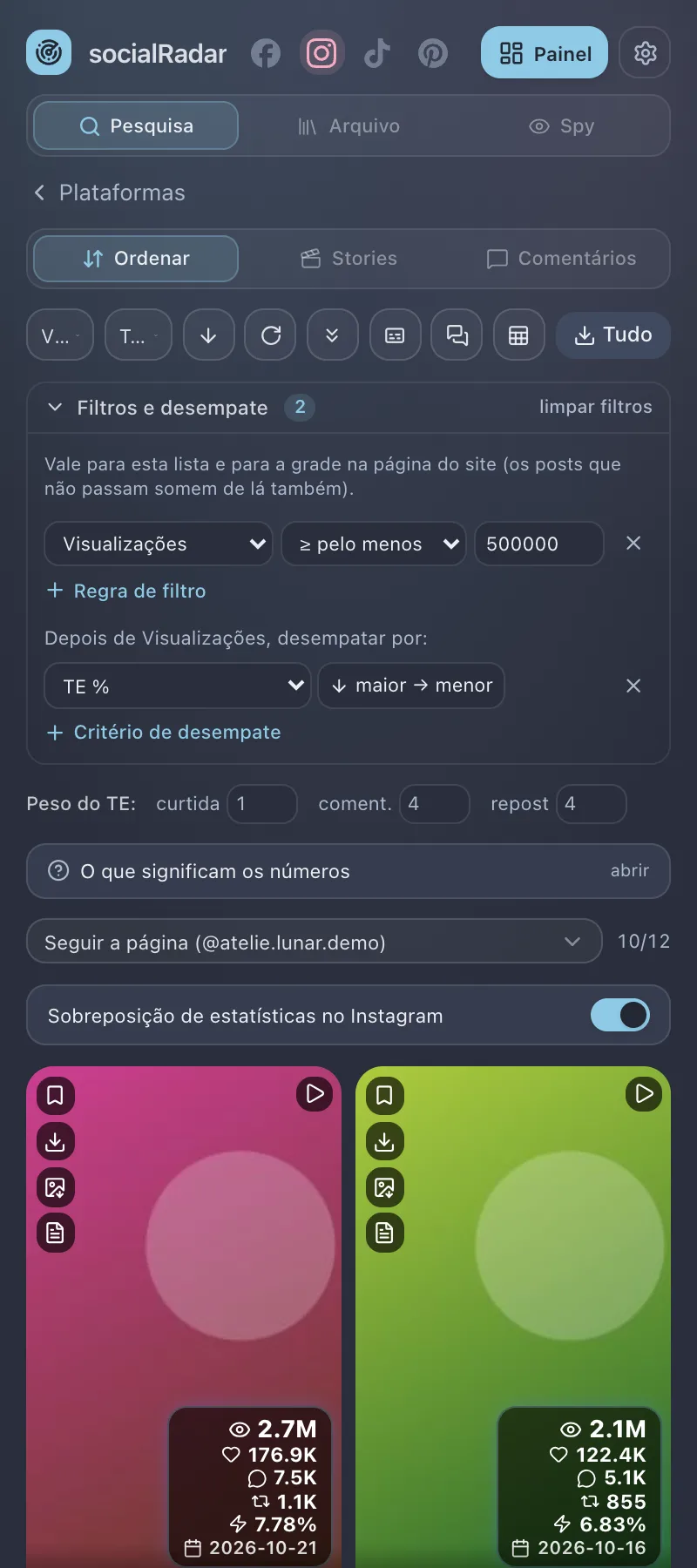
Tap Filtros e desempate (Filters and tie-breakers) to open the box.
- Regra de filtro (Filter rule): pick a field, a condition and a value — for example Visualizações ≥ pelo menos 500000 (Views ≥ at least 500000). You can add several rules.
- Critério de desempate (Tie-breaker): what decides between two posts tied on the main order. In the screenshot, after Views, ties go to ER %.
- The number next to Filtros e desempate is how many rules are on; limpar filtros clears them all.
- Filters apply on the Instagram page too: posts that fail them disappear from there.
- The counter next to the page picker becomes shown/collected (10 of 12 in the screenshot).
ER weights
ER is each post’s engagement rate:
ER % = (likes × weight + comments × weight + reposts × weight) ÷ views × 100
The default weights are 1 for a like, 4 for a comment and 4 for a repost, because commenting and reposting take more effort than liking. Change the numbers under Peso do TE if your niche calls for a different formula; the grid and the on-page overlay recompute right away.
Page shown
The Seguir a página (Follow the page) picker decides which posts appear:
- Seguir a página (default) — only the posts of the page you are on now. It re-points itself as you browse.
- A page from the list — pins a page you already visited (another profile, a hashtag), even after you leave it.
- Tudo (All) — everything collected in that tab.
Overlay on Instagram
With the Sobreposição de estatísticas no Instagram (Stats overlay on Instagram) switch on, every post in Instagram’s own grid gets a badge with its numbers and the save, download and transcribe buttons. Turn it off if you prefer a clean page. The same switch exists in Options, per network.
TikTok and Facebook Reels
- TikTok › Ordenar works like Instagram: open a profile, a hashtag, a search or a sound, scroll (or collect) and pick the order.
- Facebook › Ordenar Reels works on the Reels tab of a page or profile. Coletar tudo (Collect all) scrolls the grid until every reel is loaded; the eye shows or hides the numbers on the page.
Transcribing videos
The Transcrever (Transcribe) button appears:
- on the Sort cards (Instagram and TikTok);
- on the buttons the extension draws over videos on the network itself: Instagram reels and posts, TikTok videos, and Facebook reels, videos, searches and hashtags.
Transcription runs on your computer, with Whisper. No audio leaves the machine. The first time, the model takes a few seconds to load.
Language: pick BR (Portuguese), EN, ES or AUTO (detects it) at the top of Arquivo › Transcrições, or in Options › Transcrição. It applies to the next transcripts; finished ones keep the language they were made with.
The result goes to Arquivo › Transcrições.
Archive
The Arquivo (Archive) tab gathers what you kept, from every network. It has two parts, Transcrições (Transcripts) and Salvos (Saved).
Transcripts
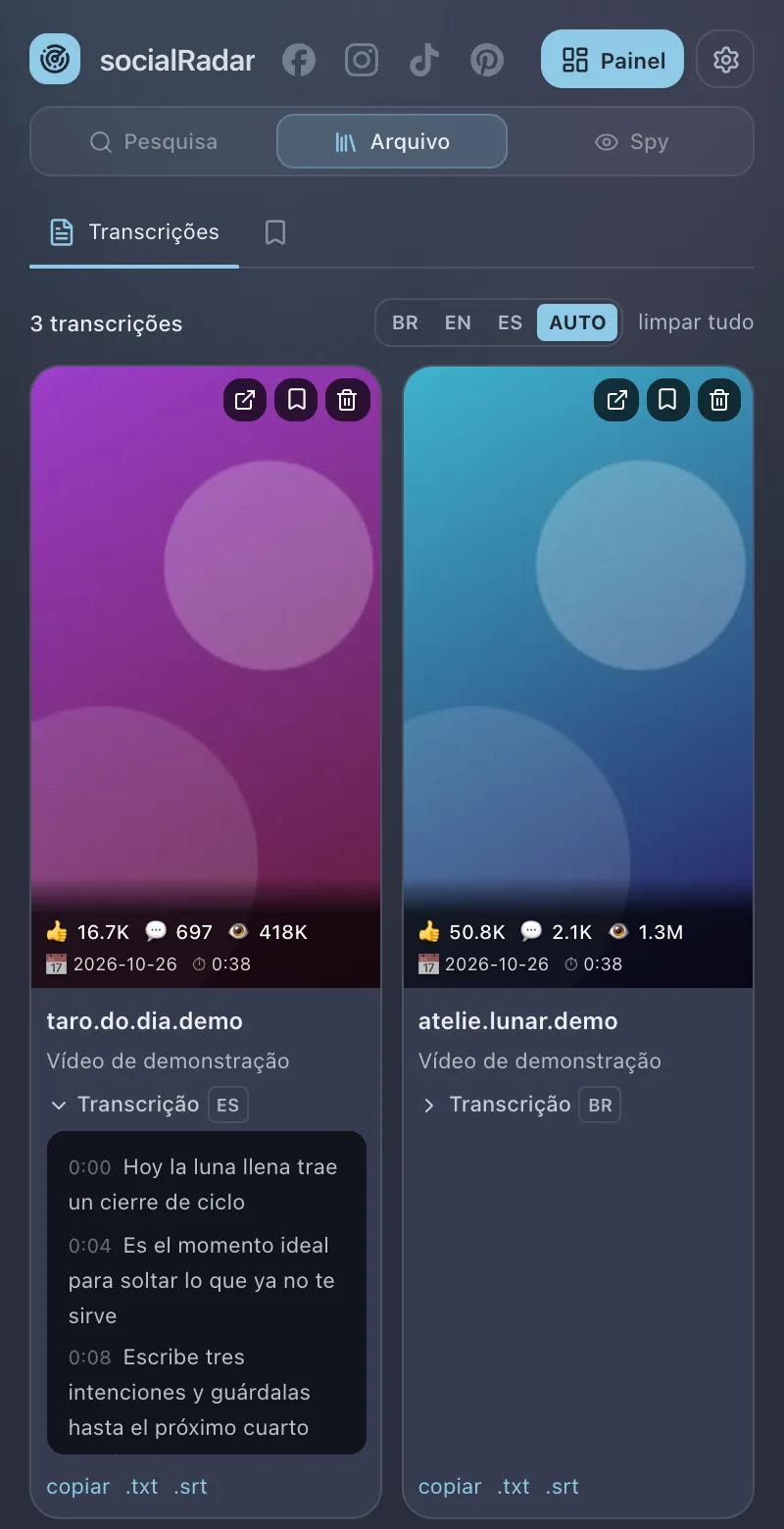
Each transcribed video becomes a card:
- At the top: open the original post, save (copies the card to Saved) and delete.
- The post’s numbers: likes, comments, views, date and duration.
- Transcrição: tap to open the text. The badge next to it (BR, EN, ES) is the language used.
- copiar (copy) · .txt · .srt — copies the text or downloads it as a text file or a timed subtitle.
The BR / EN / ES / AUTO picker sets the language of the next transcripts. limpar tudo (clear all) deletes them all (it asks to confirm).
By default the 20 most recent are kept. To keep more, go to Options › Arquivo (20, 50, 100, 300 or unlimited).
Saved
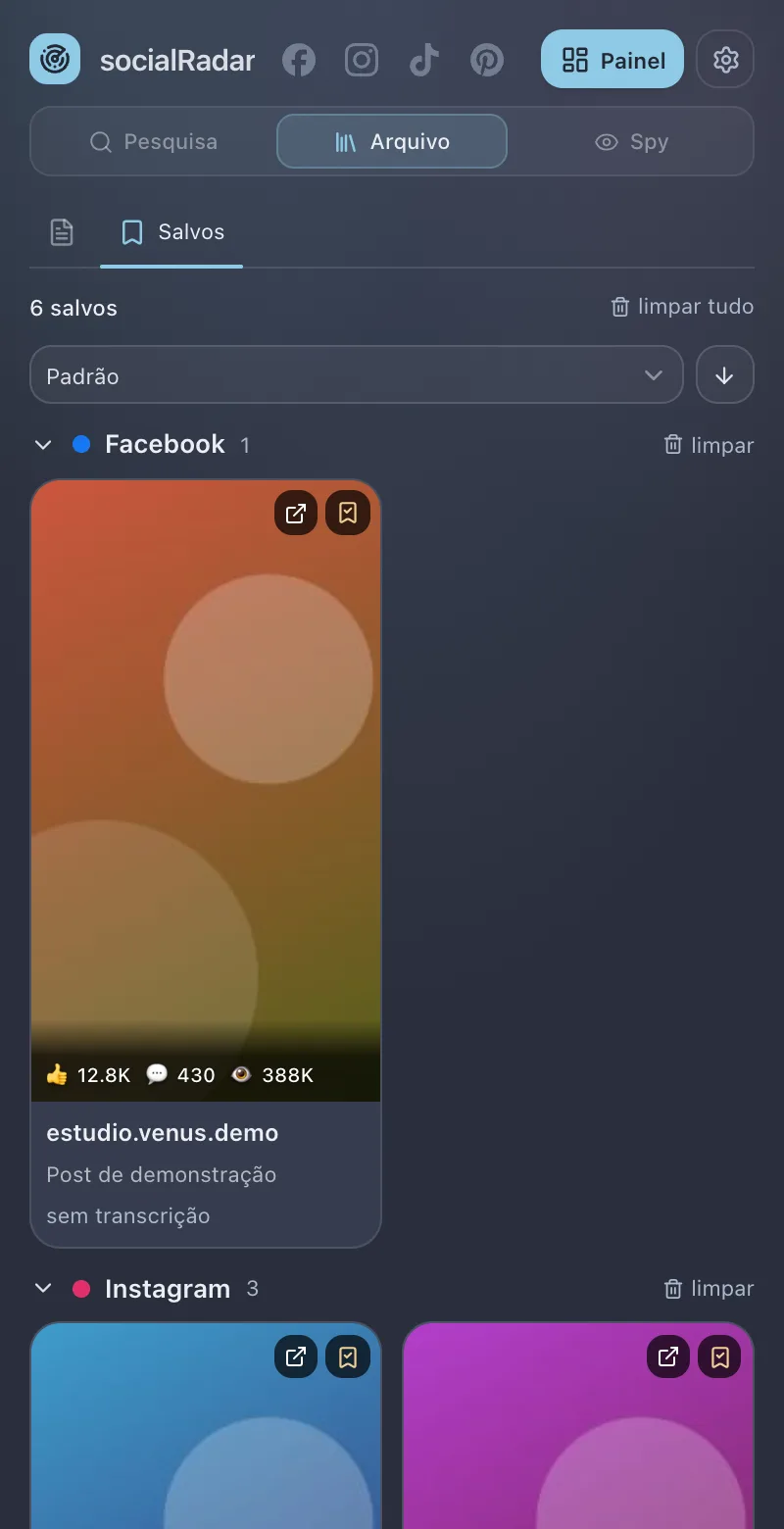
Salvos (Saved) is your collection of references: the posts you marked to study later.
How to save a post:
- with the Save (bookmark) button on a Sort card;
- with the Save button the extension draws over the post on the network itself;
- with the bookmark on a Transcripts card.
In the Saved tab:
- Posts are grouped by network (Facebook, Instagram, TikTok, Pinterest), with each group’s total. The arrow next to the name collapses the group.
- Sort by Default, Views, Likes, Comments, Post date or Saved at; the arrow flips the order.
- Each card opens the original post and has the bookmark to remove it from Saved. If the video was transcribed, the transcript shows on the card; otherwise it says sem transcrição (no transcript).
- limpar (clear) deletes one group; limpar tudo deletes them all (both ask for a second tap).
Thumbnails are stored as images inside the extension, so they don’t break when the network’s link expires. Up to 300 posts can be saved.
Spy: tracking profiles
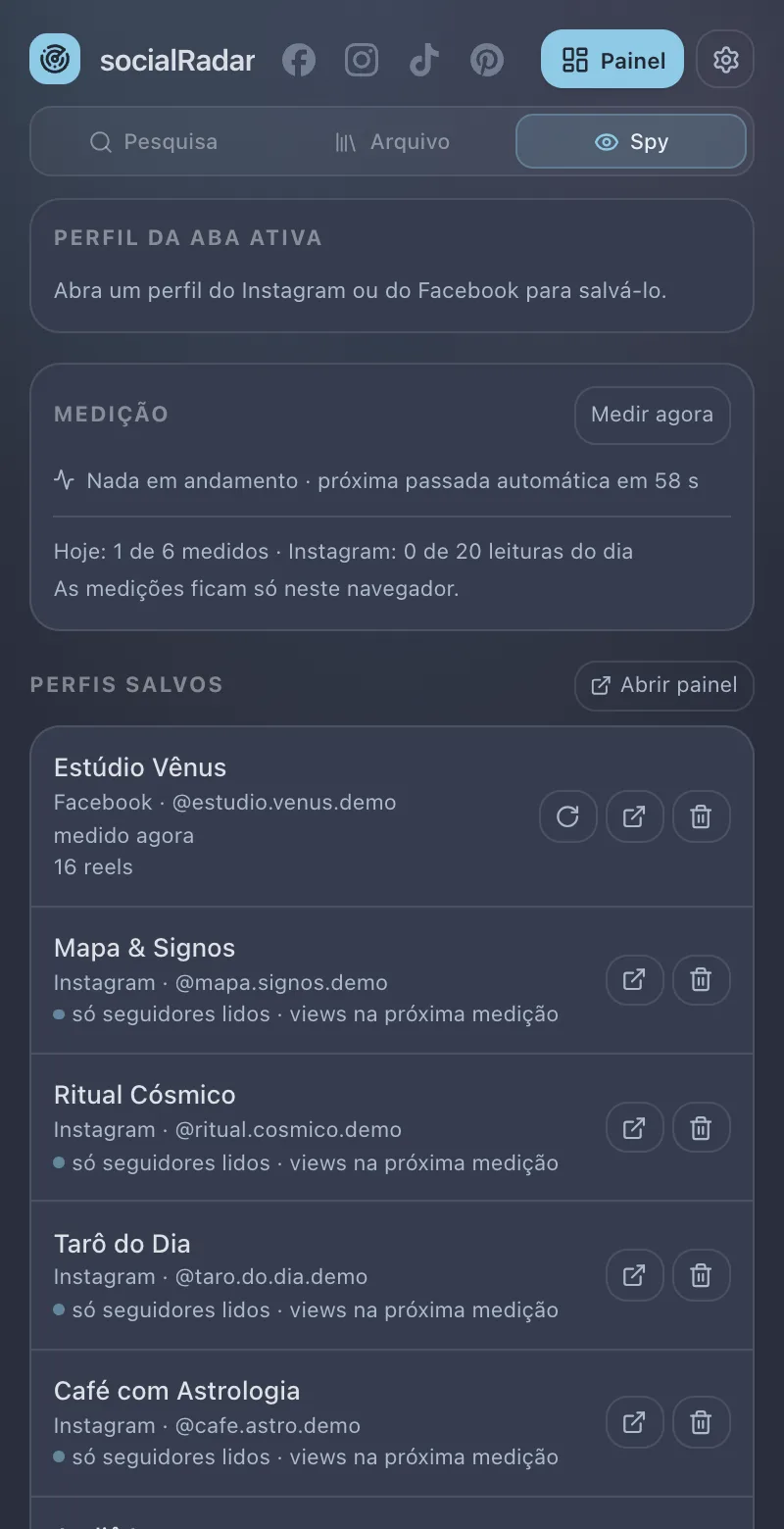
The Spy measures Instagram and Facebook profiles once a day and keeps each one’s history: followers, posts, views. You see it all on the Dashboard.
Saving a profile
Three ways:
- In the Spy tab: open an Instagram or Facebook profile. The Perfil da aba ativa (Profile in the active tab) box shows it with a save button.
- On the Instagram page itself: the Salvar no Spy (Save to Spy) button appears in the profile header.
- On the Dashboard: Adicionar perfil (Add profile), then paste the profile’s link.
You can track up to 100 profiles.
The measurement
The Medição (Measurement) box shows what is going on:
- Medir agora (Measure now) — measures the saved profiles right away, without waiting for the automatic pass.
- The status line says whether something is running and when the next automatic pass is.
- Hoje: 1 de 6 medidos · Instagram: 0 de 20 leituras do dia — how many profiles were measured today and how much of the daily Instagram limit is used.
Each reading opens the profile’s page in a background tab, one every 20–40 seconds, with your session. The default limit is 20 Instagram readings a day (up to 200, in Options › Spy). Instagram publishes no official limit: more readings raise the risk of a check or a temporary block on your account. Use it in moderation.
Saved profiles
Each row shows the name, the network, the handle and the state of the last measurement (for example só seguidores lidos · views na próxima medição — only followers read, views on the next measurement — right after saving). The buttons open the profile and remove it from the list; Facebook profiles get a third button that measures again. Abrir painel opens the Dashboard.
Measurements stay in this browser only.
The Dashboard
The Dashboard is a full page of the extension, in a browser tab. Open it with the Painel button in the side panel’s header, or with Abrir painel in the Spy tab.
The left column has Adicionar perfil (Add profile) and the Top, Perfis (Profiles), Stories and Leituras (Readings) sections. Top right: refresh, Dashboard settings and the light/dark theme.
Top
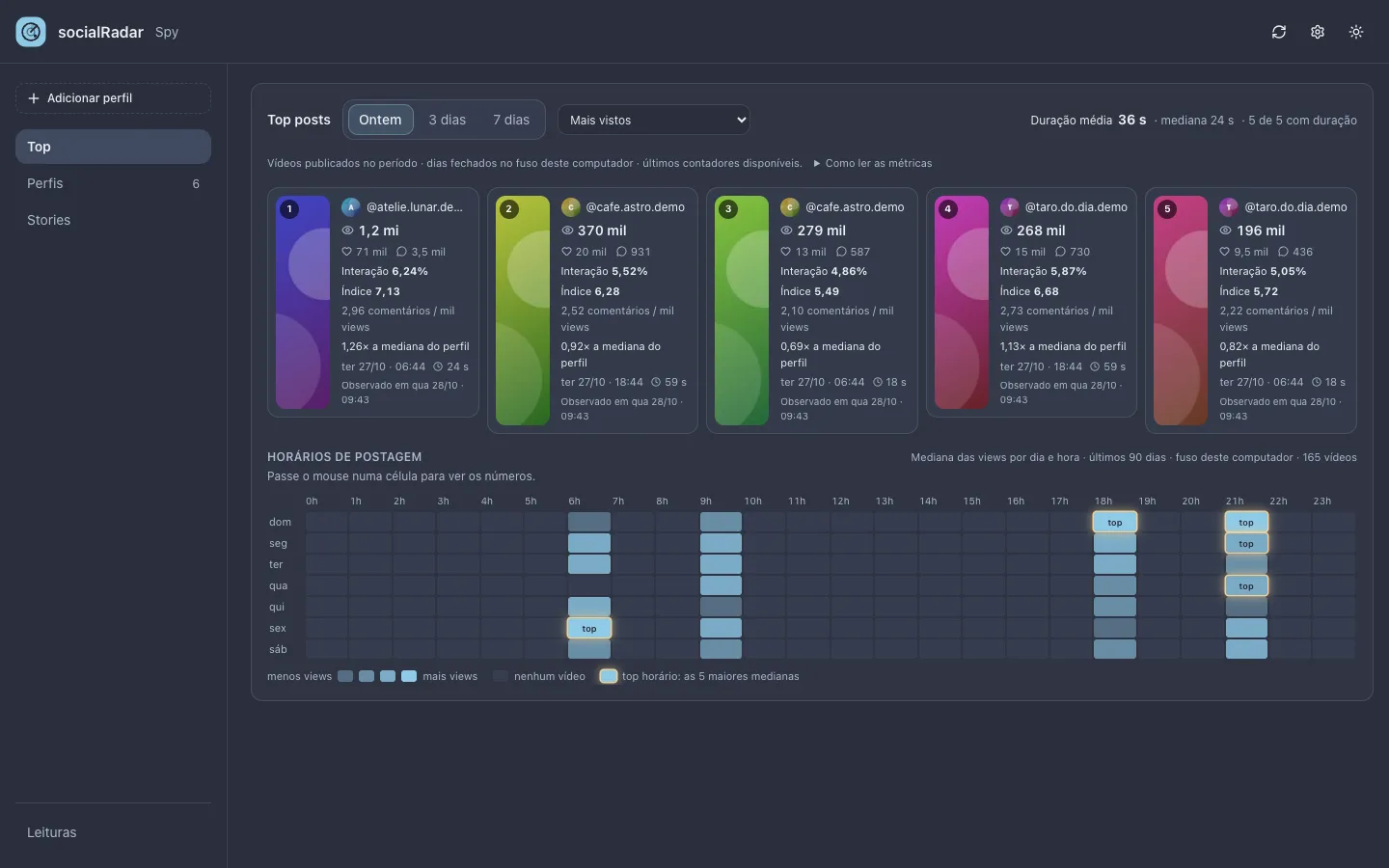
Top posts gathers the best videos from all tracked profiles.
- Ontem / 3 dias / 7 dias (Yesterday / 3 days / 7 days) — videos published in that period (whole days, in your computer’s time zone).
- The order: Mais vistos (Most viewed), Maior interação / view (Highest engagement per view) or Mais comentários / mil views (Most comments per thousand views).
- Each card: views, likes, comments, engagement %, index, comments per thousand views, how many times the profile’s own median it made, date, duration and when it was observed.
- Duração média (Average duration, on the right) — the mean and median duration of the Top’s videos.
Horários de postagem (Posting hours) is a weekday × hour map of the median views of the videos posted at each hour, over the last 90 days. The lighter the cell, the more views. Cells marked top are the 5 hours with the highest medians. Hover a cell to see the numbers.
Profiles
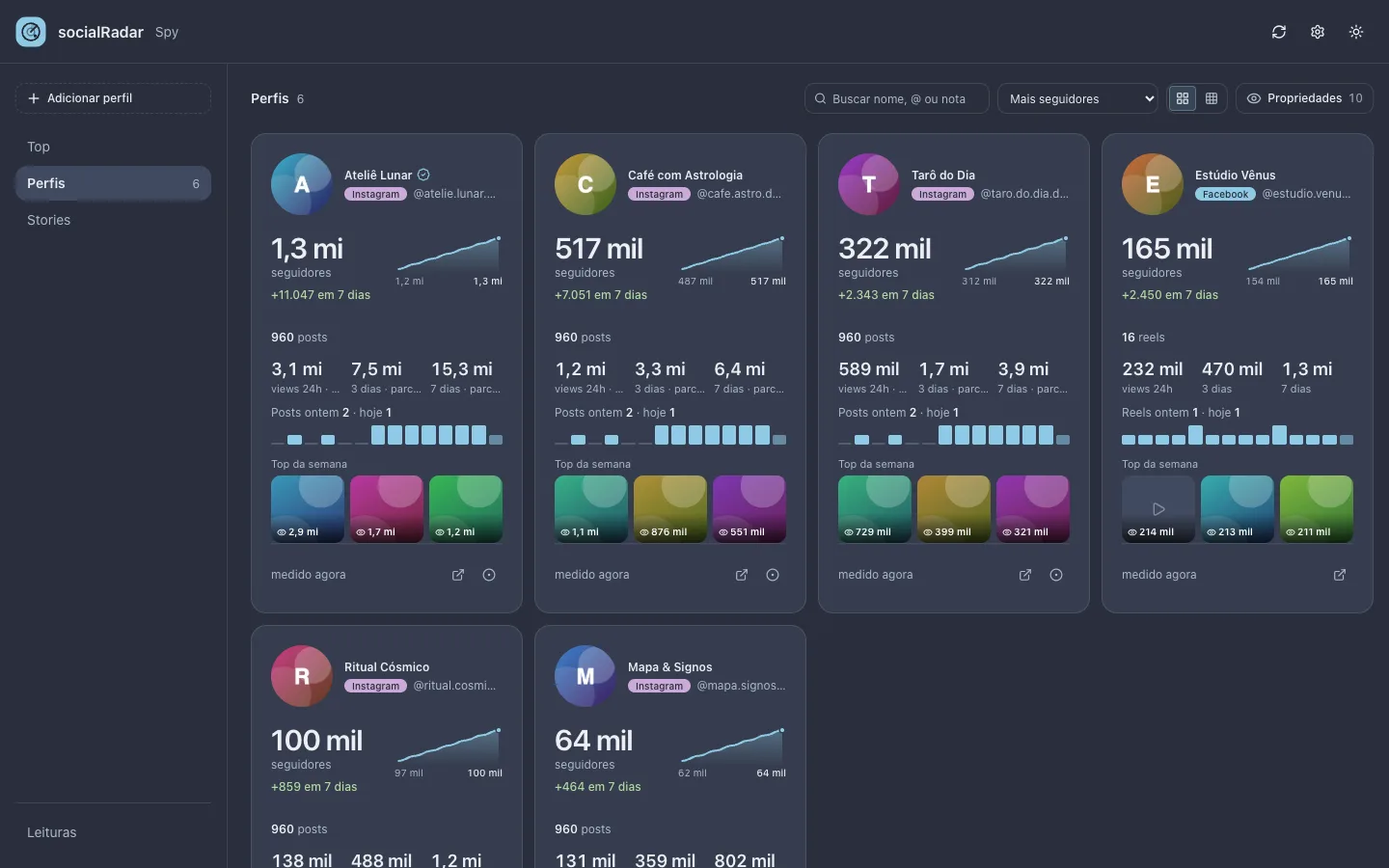
One card per profile, with:
- followers, the period’s mini-curve and the 7-day gain;
- total posts and views over 24 h, 3 days and 7 days;
- posts per day as bars, with yesterday’s and today’s numbers;
- Top da semana (Top of the week) — thumbnails of the best performing videos.
At the top of the section: search (by name, handle or note), the grid order, the density (bigger or smaller cards) and which properties show on the card.
Profile sheet
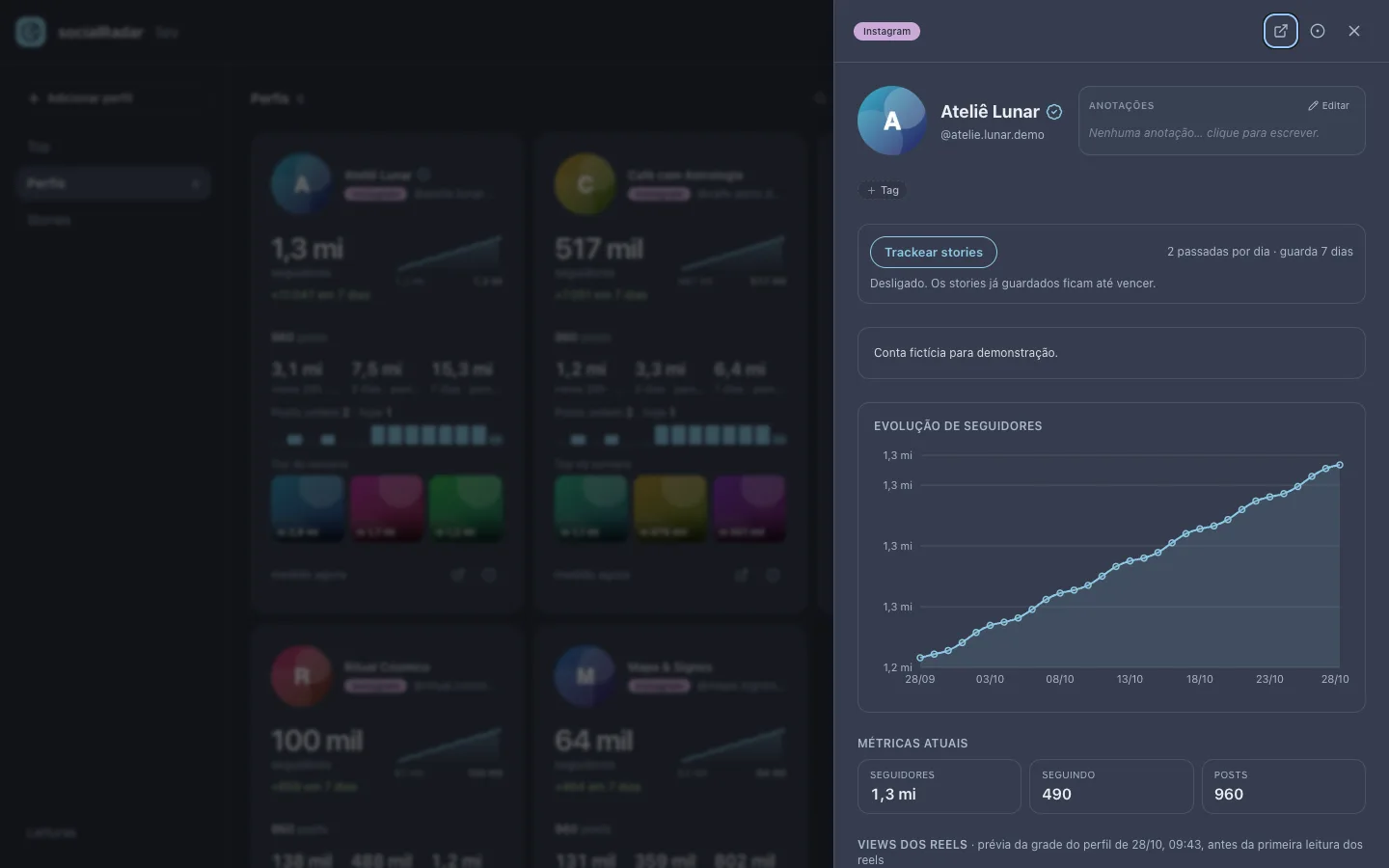
Click a card to open the full sheet:
- Tags (with colours) and free-form Anotações (Notes) about the profile;
- Trackear stories (Track stories) — turns on collecting that profile’s stories: two passes a day, kept for 7 days;
- the bio, the followers chart, the current metrics (followers, following, posts) and the reel views;
- at the top, buttons to open the profile on the network, open its saved stories and close (Esc).
Stories and Readings
- Stories — the saved stories of the profiles with Trackear stories on.
- Leituras (Readings) — the collection’s health over the last 24 hours and the log of every reading. This is where you find out why a profile was not measured.
Other tools
They all live in the Pesquisa tab, under their network.
| Network | Tool | What it does |
|---|---|---|
| Stories | Shows and downloads the open profile’s stories. | |
| Comentários (Comments) | On the open post, Coletar todos (Collect all) fetches every comment and reply (one request every 4–8 s; it stops by itself if Instagram rate-limits). Exports to CSV or XLSX. | |
| TikTok | Comentários, Stories, Playlists | Exports a video’s comments, shows and downloads stories, and downloads a playlist’s (collection’s) videos in HD. |
| Filtrar (Filter) | On search and hashtags, hides the posts below the engagement you set (for example ≥ 2000 comments OR ≥ 200 shares) as you scroll. | |
| Comentários (Comments) | Exports a post’s whole thread. | |
| Fotos (Photos) | Downloads a profile’s photos as a ZIP. | |
| Pasta (Board) | Downloads a whole board, not just the pins you scrolled past. |
Options
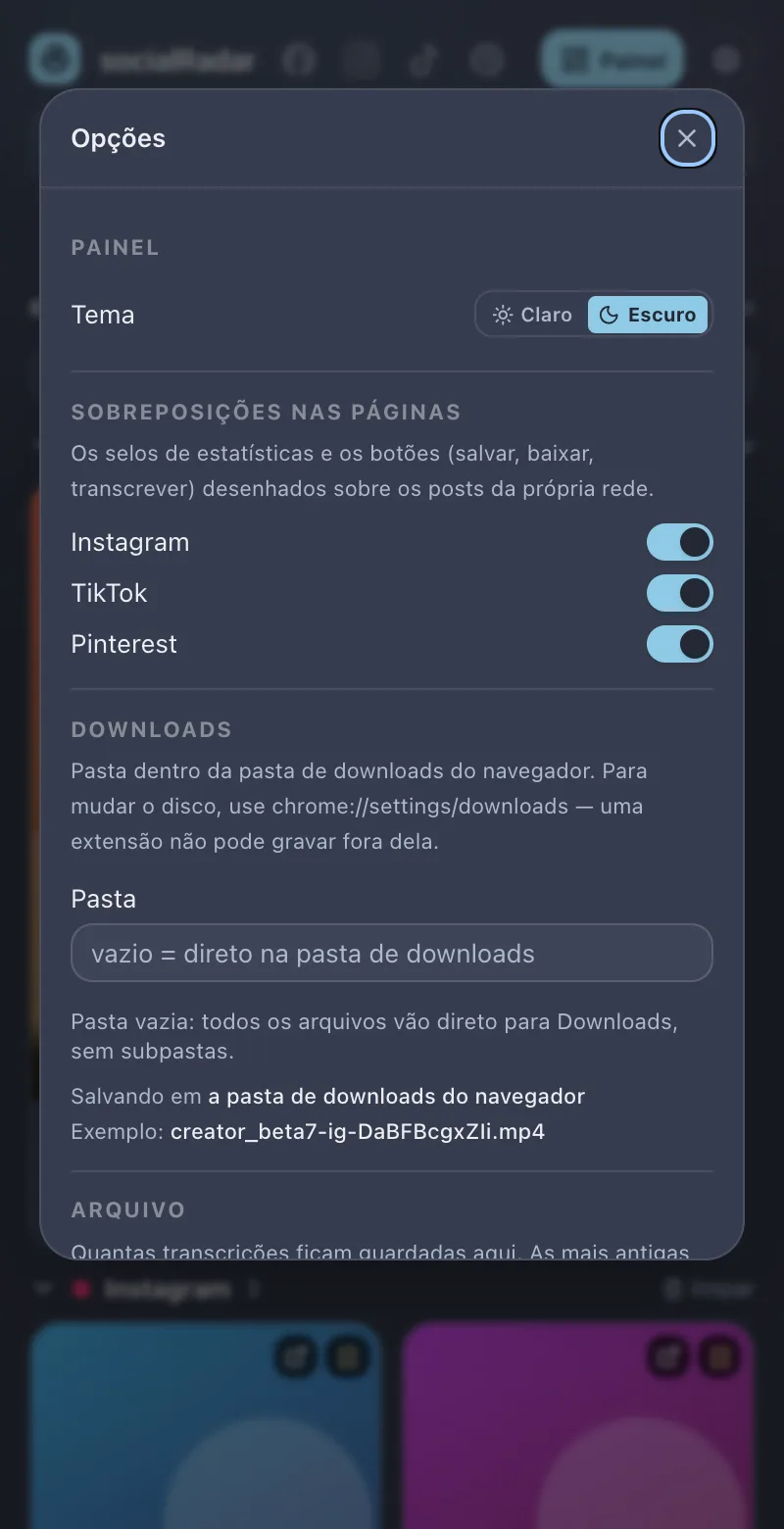
The gear in the header opens Options:
- Painel — light or dark theme.
- Sobreposições nas páginas (On-page overlays) — turns the badges and buttons drawn over Instagram, TikTok and Pinterest posts on or off.
- Downloads — a folder inside the browser’s downloads folder (empty = straight into Downloads) and the Tudo numa pasta só (All in one folder) option. To change the disk, use
chrome://settings/downloads. - Arquivo — how many transcripts are kept.
- Spy — the once-a-day measurement on or off, and the limit of Instagram readings per day.
- Transcrição — the default language for the next transcripts.
Common problems
- “Nenhuma aba do Instagram está aberta.” (No Instagram tab is open.) The tool drives a tab of that network. Open one (the button in the notice does it) and go back to the panel.
- The panel says the page did not respond. Use the notice’s button to reconnect the tab; if that does not help, reload the network’s page.
- The grid does not fill up. Scroll the page, or use Coletar: the extension only sees the posts the network has already loaded.
- Two copies of the extension. Don’t keep two versions of socialRadar installed in the same Chrome profile (an old one and a new one, say): they fight over the page and the tools stop responding.
- Where is my data? In your browser. Uninstalling the extension deletes it all. See the privacy policy.